Overview
Updated 05/09/2023
The Order > Search section allows users to search and select orders that match specific search criteria and filters.
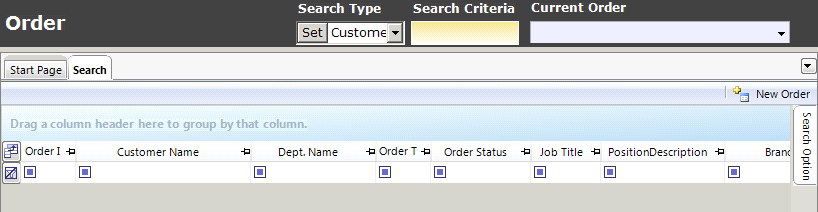
Perform a Search
This set of instructions advises how to perform a search. For additional search configurations, see the Field Chooser and Search Option sections.
- Select a Search Type. See the Search Type section for more information.
Note: To set the selected search type as the default, click Set.
- Enter search criteria in the Search Criteria field.
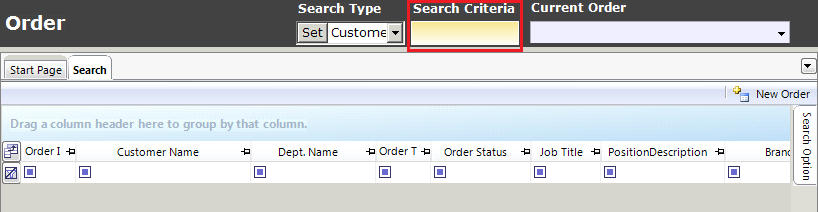
- Press Enter on the keyboard to conduct the search.
- Double-click on an entry in the grid to navigate to the Order > Summary page.
Search Type
The Search Type field defines the type of results that will appear as a result of the search criteria.
| Field | Description |
| Customer Name | The name of the customer attached to an order. |
| Order ID Search | The unique ID assigned to the order. |
| Customer ID | The unique ID assigned to a customer. |
| External ID Search | Identification number assigned to an order by an external entity. |
| Entered By | The name of the user who entered the order information. |
| Record Type | The type of record (processed or unprocessed) designating the order. |
Navigate Between Recently Viewed Orders
The Current Order field displays the Order that was last viewed in the Summary section. A list of all recently viewed orders in the current session of the Core application are listed in the Current Order drop-down menu.
User the Current Order field to navigate between recently viewed orders.

Field Chooser
 , in the upper-left hand corner of the window to display the Field Chooser window.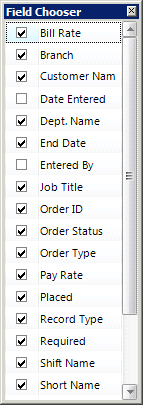
| Field | Description |
| Bill Rate | The hourly dollar amount at which the order is billed. |
| BOLD Job ID | A unique identifier that is associated with the order in BOLD. (For clients using AviontéBOLD.) |
| Branch | The agency branch with which the order is associated. |
| Customer Name | The name of the customer associated with this order. |
| Date Entered | The date the order was entered into the system. |
| Dept. Name | The customer department to which the order is associated. |
| End Date | The date the order will expire. |
| Entered By | The name of the person who entered the order. |
| Job Title | The title of the position being fulfilled by the order. |
| Order ID | A unique identifier associated with the order. |
| Order Status | The current status of the order - filled, unfilled, open, etc. |
| Order Type | A categorization of the order - temporary, permanent, etc. |
| Pay Rate | The hourly dollar amount paid to the position. |
| Placed | The number of positions filled in the order. |
| Record Type | The order's type of record - processed or unprocessed. |
| Required | The number of positions needed to complete the order. |
| Shift Name | A descriptive name for the specific shift being filled - First, Second, Overnight, etc. |
| Short Name | A descriptive nickname given to the order - Warehouse, Office, etc. |
| Start Date | The day the position begins work. |
| State | The state where the position is located. |
| WorkSiteAddress | The address where the position is located. |
Search Option Panel
The Search Option Panel on the far-right of the screen offers additional search filtering options. Options set here will override standard search parameters.
The Search Option Panel has three sections of options: Only Show, Standard Search, and Action.
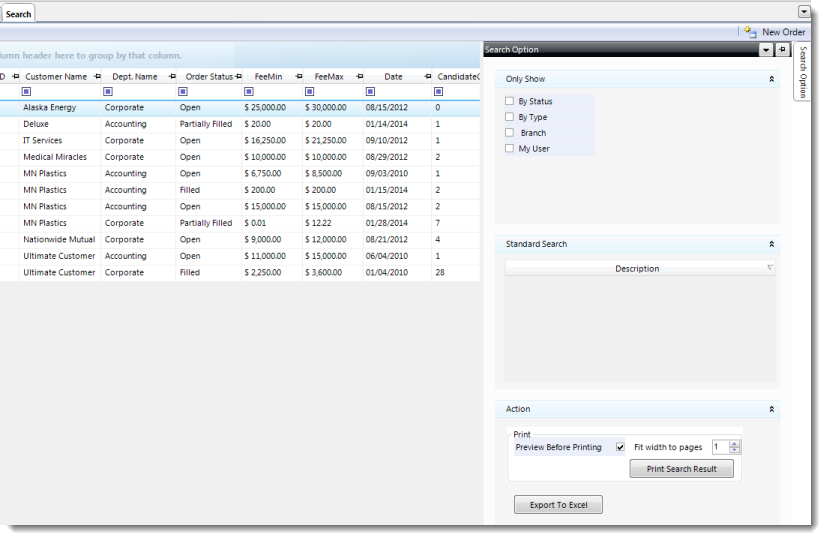
Only Show Section
| Field | Description |
| By Status | Isolate your results to only a specific status. |
| By Type | Isolate the results by type. |
| Branch | Search for only orders attached to a specific branch. |
| My User | Obtain results isolated to your user only. |
Standard Search Section
Action Section
The Actions section provides print and export options. Once search results have been generated, the results may be sent to a printer as an image or exported in Microsoft Excel format.
| Field | Description |
| Preview Before Printing | Checking this box prompts a preview of the page once Print Search Results has been clicked. |
| Fit width to pages | Determines the width of the printed grid. |
| Print Search Result | Sends the search results to the computer's default printer. |
| Export to Excel | Prompts the computer to open the search results in Microsoft Excel. |
Comments
0 commentsPlease sign in to leave a comment.